How to Build Organizational Charts in PowerPoint
If you're looking for a fast way to add an org chart to Powerpoint presentations, you've come to the right place. In this step-by-step guide, you'll learn how to build, edit, and personalize the format of your org chart.
How to Create an Organizational Chart in Powerpoint
Prepare your employee information
- Gather your employee data from your HR system or an existing spreadsheet. Most org charts include common data points such as first name, last name, title, department, and reporting manager.
Having this information organized in a spreadsheet format will make it easier to build or import your org chart.
Add employees to your org chart
- Enter key details for each employee, such as first name, last name, and title. You can use your existing spreadsheet or HR data as the source of truth for your employee information.
Add hierarchy SmartArt
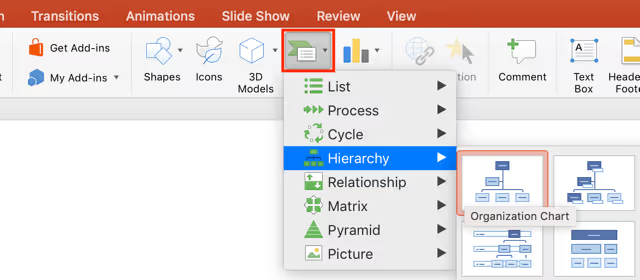
- Click the Insert option in the top ribbon, then click the SmartArt button. Scroll down to the Hierarchy option, then click the first option, Organizational Chart.
Add employee descriptions
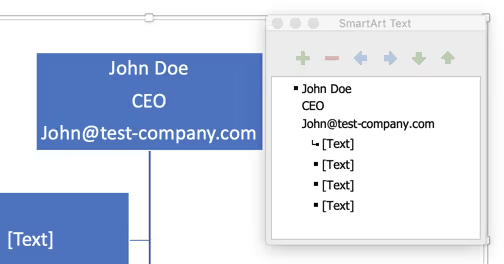
- To add or edit employee descriptions within the org chart shapes, click the shape and start typing or edit the contents in the SmartArt text box.
Add shapes to org chart
- To add shapes or employees to the org chart, click the plus icon in the SmartArt text box. You can position the new shape under their manager by demoting them with the right arrow button. You can also right click (or control + click) on the shape, scroll down to the Add Shape option, then choose where you'd like to place the new employee.

Format org chart
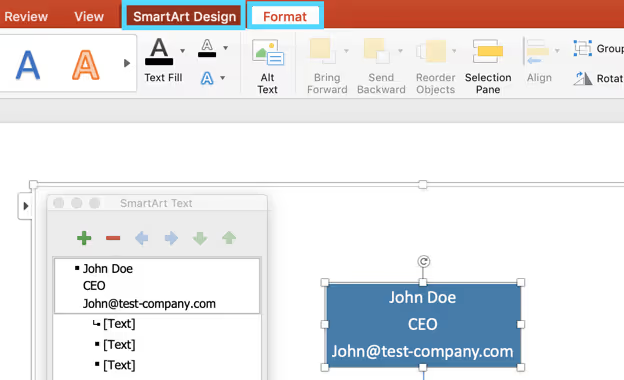
- If you want to change the styling of your org chart, click the SmartArt Design tab in the top ribbon. In this section, you can make your org chart 3D, change the color scheme, or change the layout of your company’s structure.
- If you want to change the size of your org chart, give your text a WordArt style, give your shapes a colored outline, or many other formatting updates, click the Format tab in the top ribbon.
Using another tool to build your org chart?
We’ve got you covered with step-by-step instructions for the apps you already use.


.svg)