How to Build Organizational Charts in Excel
Building organizational charts in Excel is perfect for fast one-off tasks. In this tutorial, readers will learn how to build hierarchical org charts by hand.
How to Build an Organizational Chart in Excel
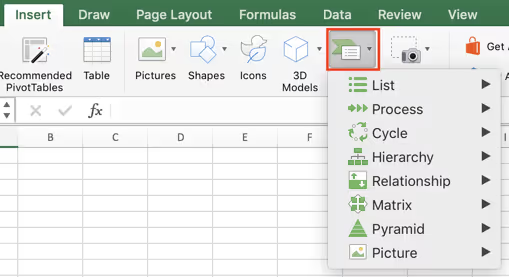
Click SmartArt
- Choose the Insert option in the top ribbon, then click on the SmartArt button.
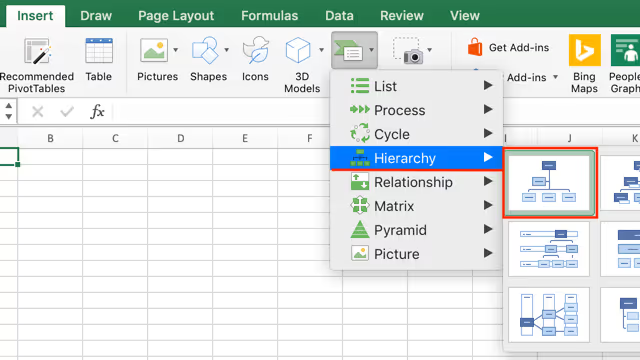
Click on Organization Chart in hierarchy fly-out
- In the SmartArt drop down menu, hover over the Hierarchy option, then choose the organization chart layout you prefer to generate a simple org chart.
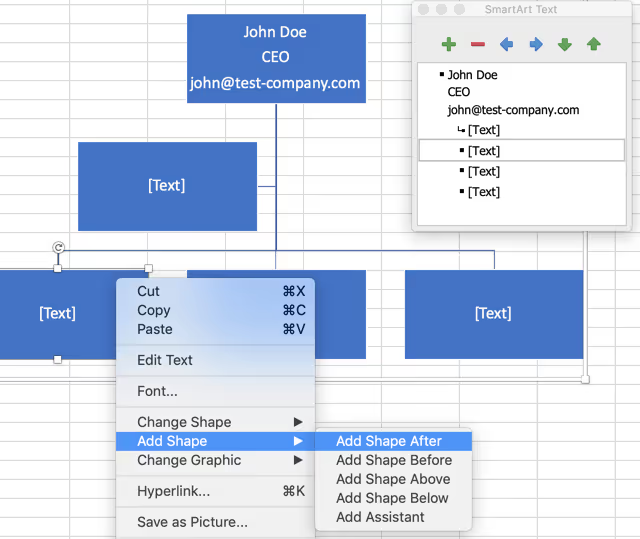
Add text to org chart shapes
- When your org chart is generated, edit text directly in each of the boxes or in the SmartArt Text box. If you have multiple data points for employees, hit enter to skip down a line within the SmartArt shapes.

Add or remove shapes in organization structure
- Add shapes in your org chart by either right clicking (control + click) and choosing where to add a shape, or by clicking the “+” symbol in the SmartArt text box.
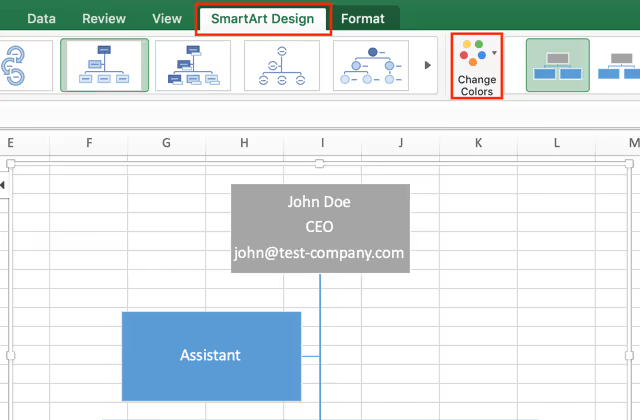
Update org chart format
- You can choose from a wide variety of colors, shapes, and fonts to make unique org charts in Excel. To change the color of your org chart shapes, click on the SmartArt Design tab in the top ribbon while you are working within your SmartArt text box. If you want to update the org chart’s shapes or font styling, click on the Format tab in the upper ribbon while working in the SmartArt text box.
Create an Organizational Chart in Excel from a List of Employees
Open a new file in Excel
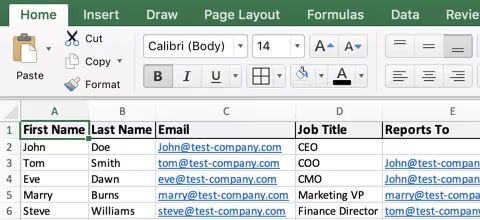
- Start by opening a new spreadsheet in Excel. This file will serve as the foundation for organizing your employee information before creating your org chart.
- In the first row, add column headers for the most common org chart data points, such as:
- First Name
- Last Name
- Job Title
- Department
- Manager (or Reports To)
- Email Address (optional)
- Employee ID (optional)
Copy/paste employee data into the org chart
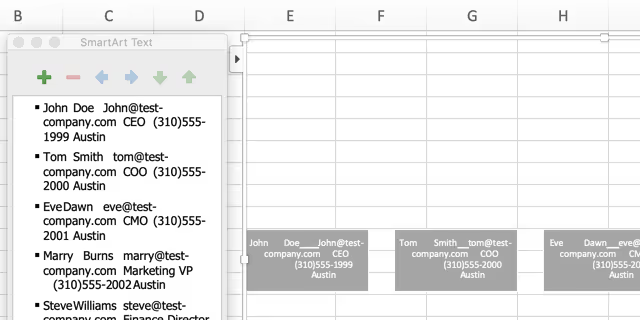
- Copy all of the data you’d like to display in your org chart, then clear the information in the SmartArt text box and paste in your employee data.
- If there’s data in the employee database that you don’t want, you can hide columns before copying the data; this will exclude any unwanted employee data points.
Style employee data in the org chart
- The information copied over from the org chart template will be in one long line. Click into each shape where the employee data was pasted and organize the information into separate lines.
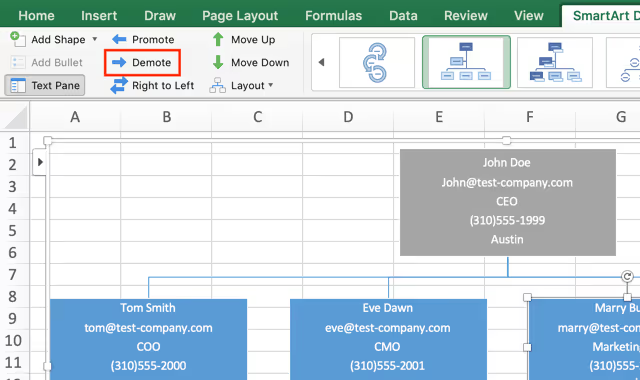
- To get your organizational structure to line up like the example below, start with the employee on the far right—or the most junior employee—and demote people until they're under their manager
Using another tool to build your org chart file?
We’ve got you covered with step-by-step instructions for the apps you already use.

.svg)
.svg)