
Keeping HR data accurate is critical for growing SMBs that use BambooHR. Workleap syncs effortlessly with your HRIS to automate employee provisioning, ensuring your engagement surveys and performance cycles always reach the right people. Eliminate manual data entry errors and save valuable admin time, so you can focus on building a thriving culture using your "single source of truth."

Use BambooHR as the source of truth while Workleap powers engagement, 360 feedback, and performance reviews.

Sync managers, departments, and changes from BambooHR to keep org charts and review cycles accurate.

Combine BambooHR headcount and compensation data with Workleap insights for smarter pay and talent decisions.

Workleap capabilities
BambooHR manages employee records. Workleap Officevibe understands the employee experience.
While BambooHR provides a strong HRIS foundation, it doesn’t capture how employees feel day to day, or what managers need to support them. Workleap Officevibe brings pulse surveys, feedback loops, and recognition into the flow of work, becoming the perfect engagement companion to BambooHR’s people data.
- Employee & role (provisioning, relationships and reporting lines): sync employees, managers, departments, and reporting lines.
- Automatic user management: When someone joins, leaves, or changes roles in BambooHR, the update syncs to Officevibe. Survey results are updated to remove employees that are no longer part of the team.
- Allows the system to retrieve customized user properties that can be used to create segments (today) and in the future will be used to filter the OV reports.
BambooHR powers people management. Workleap Performance powers performance management.
BambooHR includes basic performance tools, but they aren’t built for depth, scale, or modern AI-driven workflows. Workleap Performance complements BambooHR by adding a far more robust, flexible, and insight-driven performance system that goes beyond BambooHRs lightweight reviews and goal tracking. Together, they give companies a complete people stack without forcing them to switch HRIS.
- Employee & role (provisioning, relationships and reporting lines): sync employees, managers, departments, and reporting lines.
- Automatic user management: When someone joins, leaves, or changes roles in BambooHR, the update syncs to Workleap Performance.
- Cycle setup with accurate org structure: Use BambooHR org data to define review participants, approval chains, and calibration groups.
- (Coming Soon) HR data foundation for AI-powered insights: The integration gives Workleap Performance contextual data (role, tenure, team) used to improve AI review guidance.
BambooHR provides people data. Workleap Compensation provides consistency.
When BambooHR and Workleap Compensation work in tandem, your HRIS data always keeps your comp insights, analysis, workflow, and communication up to date.
BambooHR is an HRIS integration with which Workleap Compensation supports custom tables to populate fields such as Variable Pay and Bonus Targets. Our integration also supports the importing of historical pay data as well as custom fields to ensure a holistic, accurate view of compensation.
Requirements for integration
- You must be an Administrator in both Workleap and your BambooHR
- Only one user provisioning integration can be active at a time
- BambooHR credentials for authentication during setup
- Create custom properties in Workleap before mapping them from BambooHR
- Email addresses of manually added users must match their BambooHR email addresses before initial sync
- Meet minimum IT requirements
Initial BambooHR setup
To initially set up the BambooHR integration:
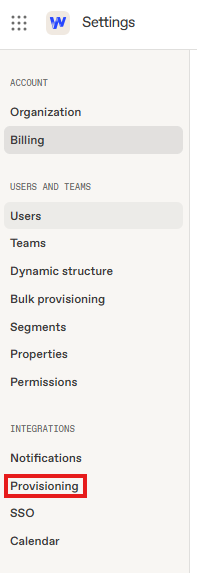
1. When logged into your account, click the gear icon on the top right corner to access your Account settings page and select Provisioning from the side menu
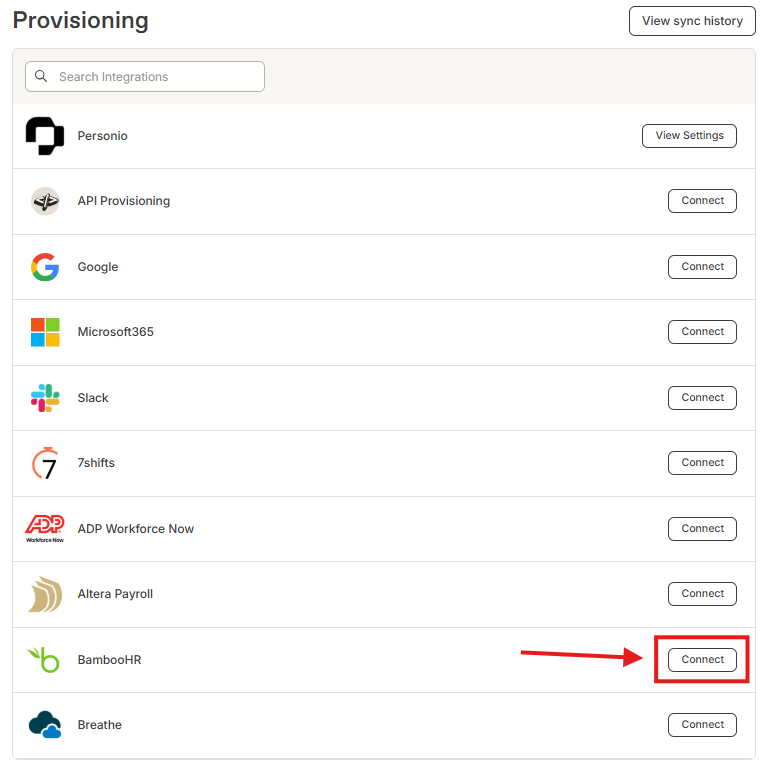
2. On the Provisioning settings page, search for BambooHR and click Connect.
3. A pop up guide will open that will take you through the authentication process with Bamboo. Follow the navigation and select Submit to connect Workleap to your HRIS.
- The time it takes to establish an initial connection varies greatly depending on the HRIS and the size and complexity of your account.
- Feel free to leave the page, as that won't affect the connection.
4. Once the connection between Workleap and your HRIS is established, you'll be directed to the integration configuration page, provided you have the page open
Choosing what employee types to sync
After setting up the integration, you will be able to select what employee types in BambooHR you wish to sync over. The options are:
- Full Time
- Part Time
- Interns
- Contractors
- Freelancers
You will also be prompted if you wish to sync all employees in your BambooHR account, or a specific group in BambooHR. If you wish to sync only specifically selected users you will need to create a group in BambooHR of these users, then select this group from the integration settings page. Once selected only employees who are added to this group in BambooHR will have their profiles generated and created in Workleap.
Configure properties
You’ll need to create properties in Workleap in order to sync data from Bamboo to that property. To add new custom properties in Workleap:
- Open Settings and select Properties from the side menu
- Create the properties you want to map from Bamboo.
- For choice properties (i.e., drop-down lists), you only need to add a single choice; the integration adds the rest for you when syncing with your HRIS.
- On the Bamboo integration settings page, select Create new mapping.
- Select a field in the HRIS field column to map to Workleap.
- If you do not see a field, it may not be configured correctly. Select + Map HRIS fields to add the field.
- Select a property from the Workleap property column to map the HRIS field to.
- If you do not see a property, it may not have been added yet. Select + Create a new property to add a property.
Mapping your teams
While in the Bamboo integration settings page in Workleap activate the toggle to map your HRIS groups to your Workleap teams. When you map an HRIS group to a team, users from the selected group(s) will be automatically added to or removed from that team during the next daily sync.
To map a group to a team, select the drop-down in the HRIS group column and start typing the desired group's name. When it appears, select the group from the list.
To prevent contractors from syncing, you can filter them out directly through your HRIS integration. In BambooHR—and in all other supported HRIS systems—you can exclude contractors by applying an employment status filter (e.g., setting Employment Status = Contractor to be excluded).
You can still review your Integrations → Provisioning settings to confirm which filters are available, but you do not need to reorganize BambooHR groups or rely on group mappings for this purpose. The employment status filter ensures that only the employee categories you choose—typically full-time or part-time staff—are synchronized with Workleap.
New hires sync when:
- Their BambooHR profile is set to Active
- They have a valid work email
Workleap syncs users based on the work_email field, which must be populated in order for users to be fetched during provisioning. If you need changes to take effect immediately, any Workleap admin can trigger a manual sync directly from the Provisioning page.
Duplicate profiles are created when:
- Email addresses don’t match exactly between Workleap and BambooHR.
- A user was manually created in Workleap with a different email than in BambooHR.
- A BambooHR profile was deleted/recreated with a new email.
Solution:
- Remove duplicate profiles lacking correct or matching emails.
- Ensure all employee emails in Workleap exactly match BambooHR before syncing
Stop leaving leadership *to luck.*
API key holder dependency and credential management issues
When the person who set up the BambooHR API integration leaves the company, their deactivated credentials break the sync and require manual reconnection; administrators lack detailed field-level troubleshooting logs.
- Create API keys with appropriate scope and access levels through Settings > API
- Choose between read-only or read-and-write access based on your needs
- Set proper expiry dates and monitor key status regularly
The full API key is only shown once at creation and cannot be recovered if lost. If you lose access to a key, revoke it immediately and create a new one.
- Document which team members have access to critical API keys
- Use the API management page to view all keys, their scope, access level, and status
- Edit or revoke keys as needed when personnel changes occur
Field mismatch, format validation, and data quality issues
Integration fails when field values (Job Title, Location, Department, Employment Status) don't match exactly including capitalization and special characters. Trailing spaces in names cause silent failures and duplicate entries.
Make sure you've created the properties in Workleap first, then mapped them correctly to BambooHR fields. If you don't see a field in the mapping options, it may not be configured correctly in BambooHR.
- Standardize formats for dates, currencies, and text case across all data sources
- Remove duplicates by scheduling routine scans to identify repeated entries
- Enforce validation rules to catch impossible values or missing fields early
- Validate your data before syncing: clean files of duplicates and ensure required fields are filled
- Use UTF-8 format for proper character recognition
- Confirm email addresses are valid and unique
- Check that role and team names match existing entries in Workleap
Discover other integrations


.svg)