Integrating Workleap with Microsoft 365 streamlines user management by automatically syncing employee data such as new hires, departures, and profile details every 24 hours. This ensures your teams and org charts are always up to date, reducing manual admin work, and eliminating errors from spreadsheets. With easy mapping of Microsoft 365 groups and custom properties, you get a reliable, updated source of truth for your organization, saving time and boosting efficiency

Sync Microsoft 365 people data so surveys, 360s, and reviews always get to the right employees and managers.

Use Microsoft SSO for secure, one-click access to Workleap engagement and performance tools and boost adoption.

Combine Microsoft 365 use and Workleap feedback to give leaders deeper insight into productivity and alignment.

Workleap capabilities
Microsoft 365 powers productivity. Officevibe powers employee engagement.
M365 centralizes conversations and content, but it can’t diagnose engagement issues, facilitate continuous feedback, or nurture a culture of recognition. Officevibe adds the missing layer of employee engagement, real-time sentiment, pulse surveys, and actionable insights that help teams thrive inside their Microsoft ecosystem.
Microsoft 365 powers project management. Workleap Performance powers performance management.
M365 stores documents, emails, and tasks, but it can’t run structured reviews, feedback loops, goal tracking, or calibration. Workleap Performance fills that gap by adding the performance system your Microsoft stack is missing—a consistent, fair, repeatable process layered on top of the tools you already use.
- Sharepoint is a connected source in the AI Review to pull documents from sites to give context to the reviewer when writing
- Outlook calendar and emails will soon be available sources in the AI Review
- Outlook emails deliver notifications
- Teams will soon deliver method notifications
- Calendar integration will soon power the new Workleap meeting notes feature
Requirements for integration
- You must be an Administrator in both Workleap and your Microsoft 365 organization
- Only one user provisioning integration can be active at a time
- Workleap must have access to these specific scopes during setup:
- Maintain access to data you've given access to
- Read custom security attribute assignments
- Read custom security attribute definitions
- Read all groups
- Read full user profiles
- For calendar sync: Microsoft administrator privileges for your organization
- Email addresses of manually added users must match their Microsoft 365 email addresses before initial sync
- Meet minimum IT requirements
Initial Microsoft 365 setup
The Microsoft 365 integration with Workleap is set up to make managing your employee data effortless by automatically adding, updating, or removing employee profiles in your account. Map additional employee, teams, and group properties to automatically update important information and ensure your teams are properly represented.
You must be a global admin in Microsoft 365 in order to complete the integration setup
To initially set up the Microsoft 365 integration:
1. When logged into your account, click the gear icon on the top right corner to access your Account settings page and select Provisioning from the side menu
2. On the Provisioning settings page, search for Microsoft 365 and click Connect.
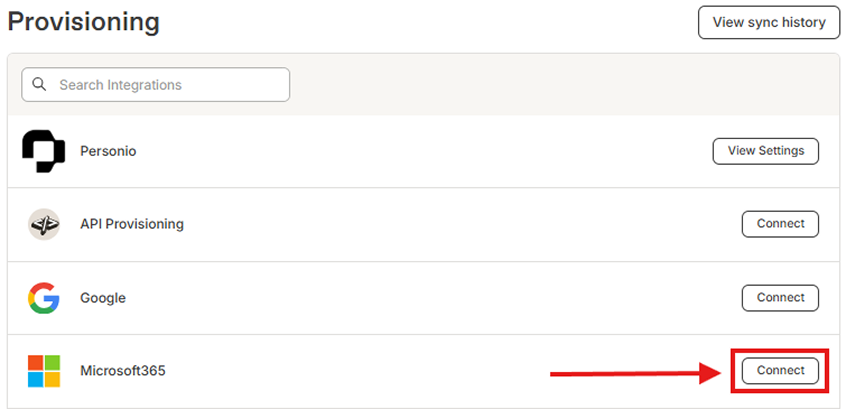
3. Select Connect to your Microsoft 365 organization.
4. Enter the requested authentication info to connect to your Microsoft 365 organization.
- Be sure to accept the requested permissions to Workleap when asked.
- The time it takes to establish a connection varies greatly depending on your organization's size.
Syncing by group
To sync a specific group of employees in Microsoft 365 instead of all employees in your account, you must first create this group in Microsoft and add all the profiles that should sync over to your account. Once that group is enabled, navigate to your Microsoft 365 sync settings in Workleap and select Everyone in the following Microsoft 365 groups, then select the group you have created. Upon the next sync any profile in Workleap that is not in this group will be deactivated.
SSO
To activate Microsoft 365 SSO for your Workleap account after activating your integration:
- Open Settings and select SSO from the side menu.
- Toggle on the SSO for Microsoft 365.
Once this is enabled your users will need to authenticate with their Microsoft 365 credentials to access their account.
Microsoft 365 custom mapping guide
The following default properties are premapped to Workleap:
- User name
- Email address
- Profile picture
- Hire date
- Direct manager
If there are additional properties you want to include in your employee profiles you can use the custom mapping tool to easily assign and update them. To access the custom mapping tool navigate to your Microsoft 365 provisioning settings and scroll down to Custom Property Mapping.
From there you will see a list of recommended properties that can be automatically enabled by checking the sync button for that property. If there are additional custom properties that are not shown in the recommended press the +Create New Mapping button then select the property from Microsoft 365 in the left column, and the Workleap property you wish to map it to on the right.
Workleap custom properties need to be set up before attempting to create a mapping. You can learn how to add/edit/delete custom properties here.
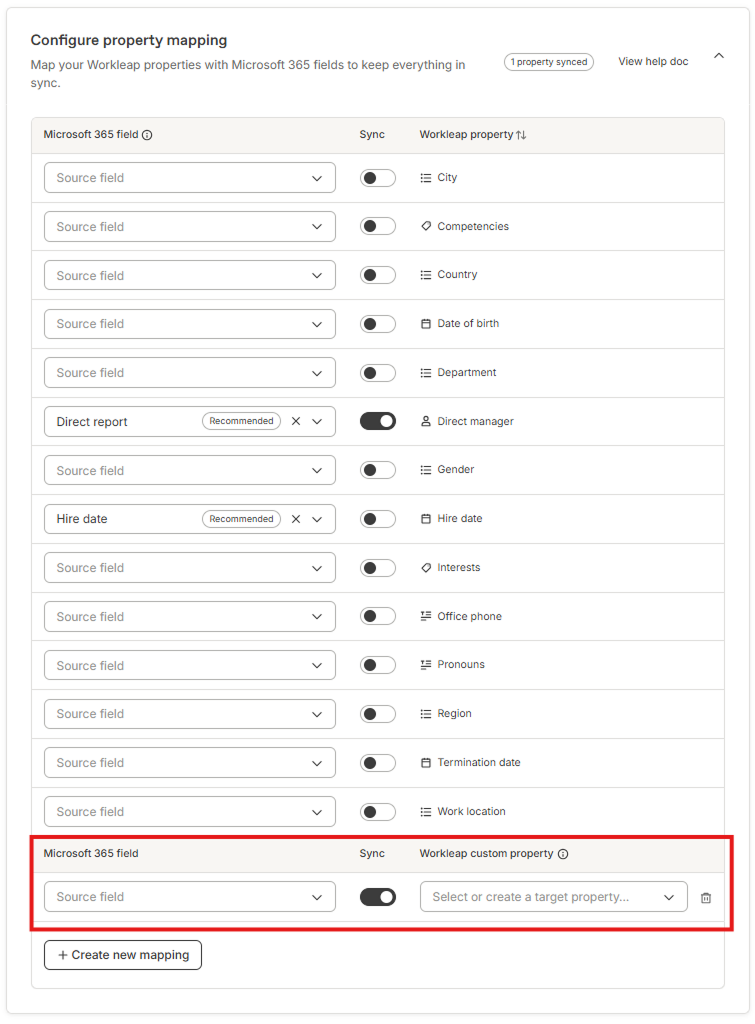
Once all of the mappings have been configured you can press the save button at the bottom of the page to complete the setup. The next time Microsoft syncs with your account it should begin pulling in those properties to your employee’s profiles.
Microsoft 365 team mapping
Once you have your employee profiles and property data set up, the last step is to set up your team mappings from Microsoft 365 to Workleap. You can map teams either one of two ways: by mapping already existing teams in your Workleap account to the teams you have setup in Microsoft 365, or by using dynamic structuring to automate the setup of teams based on employee profile data. To set up a dynamic structure within your account please read our Dynamic structure guide in our Help Center.
To map your existing Workleap teams Microsoft 365 navigate to your Microsoft 365 Integration settings and scroll down to Map your teams. Toggle this box and once it expands you will see your existing Workleap teams appear. Search for the Microsoft 365 group you wish to map to each group and select it from the drop-down menu.
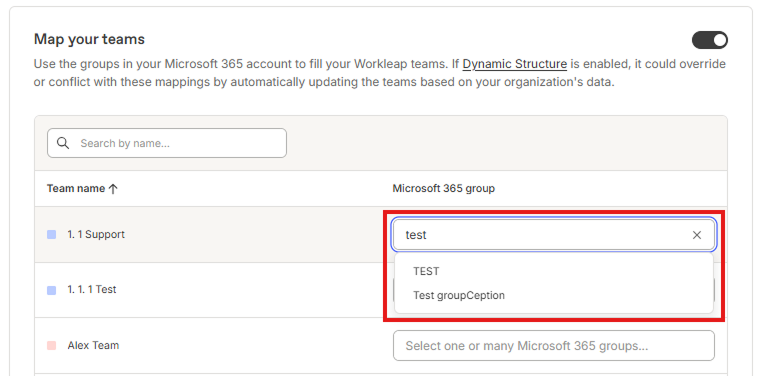
Once you have made your selections, press the Save button at the bottom of the page to complete your mapping. The next time Microsoft 365 syncs with your account, you will see those teams populate your account.
To configure or maintain the Microsoft 365 integration with Workleap, the person linking the integration must be an administrator in both systems. This typically means being a Global Administrator in Microsoft Entra ID (Microsoft 365) to grant the necessary permissions, as well as an administrator in Workleap to access and manage the integration settings.
Workleap products perform a scheduled, automatic synchronization of user data from Microsoft 365 / Entra ID—typically every 24 hours, although some products may sync more frequently (such as hourly). Each sync updates newly added or removed users and refreshes core profile details, including name, email, job title, profile photo, and reporting manager relationships. In certain products, synchronization also includes group memberships and team mappings.
As for user status, it’s important to note that:
- Users are only removed during the sync if their status in Workleap is Created or Invited.
- Users who are already Active in Workleap will not be removed; instead, the sync will deactivate them when appropriate.
Additionally, Workleap fully supports mapping teams with Microsoft. The only requirement is that the corresponding Workleap teams must be created in advance in order for the mapping to occur.
You can limit provisioning to specific groups or subsets of users instead of syncing your entire directory. Depending on the Workleap product and integration version, this can be done through options such as group-scoped provisioning in Azure AD / Entra (syncing only assigned users and groups) or Microsoft 365 features like Sync by Groups or Manage Groups Sync.
Workleap only syncs active users from Microsoft 365—guest users are never synchronized. This same rule applies to Google and Slack integrations. While you can target specific Microsoft groups for provisioning, Workleap cannot filter users based on employment status the way it can with HRIS-based integrations.
Workleap syncs all active users that match the provisioning logic in Microsoft 365 / Entra ID. This includes contractors or temporary workers if they are represented as regular active users in Microsoft 365. Guest accounts are excluded by default, and Workleap does not support custom attribute mappings to alter this behavior.
To control which users are synchronized, many customers rely on dedicated Microsoft groups (for example, groups containing only full-time employees) to prevent syncing guests, low-privilege accounts, or other special user categories.
Stop leaving leadership *to luck.*
Manager hierarchy and direct manager data sync issues
Direct Manager data required for performance reviews and org chart functionality fails to sync properly when not configured correctly in Microsoft 365, or when parent account linking is incomplete.
The "Reporting Manager" property from M365 determines a user's Direct Manager in Workleap. Verify that the Team Manager in Workleap aligns with the Direct Manager in your M365 integration.
- Missing or inaccurate Direct Manager fields in M365
- Incorrect property values like wrong department tags
- Data propagation delays between systems
- Ensure all users have Direct Manager assigned in M365. Without this, they won't appear correctly in org charts.
- Check if managers are seeing results from wrong teams. This happens when teams are still set as sub-teams under their hierarchy.
- Remove incorrect teams from former managers team hierarchies.
- Verify work email addresses are up to date in Workleap.
OAuth and permission scope authentication failures
Integration fails during setup when proper admin permissions and API scopes (custom security attributes, group access) are not granted, or when OAuth delegated user email is incorrectly configured.
When setting up the Microsoft 365 integration, ensure you accept all requested permissions to Workleap, including:
- Maintain access to data you've given access to
- Read custom security attribute assignments and definitions
- Read all groups
- Read full user profiles
- Verify email consistency: Make sure your email in M365 matches your Workleap profile exactly.
- Use the correct login page: Access the dedicated SSO login page that shows Microsoft authentication options, not the default username/password page.
- Reset the connection: Try disconnecting and reconfiguring your SSO setup to force a re-sync.
- Check SSO enablement: Confirm with your admin that SSO is properly enabled and connected for your specific Workleap product.
- If these steps don't resolve the issue, you can ask to speak with
Complex permission requirements and troubleshooting delays
Users struggle with extensive admin-level permission setup and lack of real-time sync reporting, making it difficult to diagnose and resolve failures quickly.
The M365 integration requires specific permission scopes that must be accepted during setup:
- Maintain access to data you've given access to
- Read custom security attribute assignments and definitions
- Read all groups
- Read full user profiles
If you're experiencing delays or issues, the connection time may vary greatly depending on your organization's size.
Discover other integrations


