
Leverage the power of HiBob’s modern HR platform by pairing it with Workleap’s specialized engagement and performance tools. This integration ensures automatic, real-time syncing of your workforce data, giving you an accurate foundation for performance reviews and feedback loops. Scale your people processes confidently and reduce administrative overhead by connecting your core HR data instantly.

Sync HiBob records and reporting lines so surveys, 360s, and reviews reflect your real org structure.

Map credentials and permissions between HiBob and Workleap to simplify access and reduce admin.

Blend HiBob HRIS data with Workleap engagement and performance signals for a unified view of workforce health.

Workleap capabilities
HiBob organizes people operations. Workleap Officevibe understands people.
HiBob excels at HR data and process management, but it can’t continuously listen to employees, diagnose engagement trends, or empower managers with real-time insights. Officevibe complements HiBob by adding continuous pulse surveys, feedback, and recognition to complete the talent management layer HiBob doesn’t cover.
- Employee & role (provisioning, relationships, and reporting lines): sync employees, managers, departments, and reporting lines.
- Automatic user management: When someone joins, leaves, or changes roles in HiBob, the update syncs to Officevibe.
- Survey results are updated to remove employees that are no longer part of the team. It also allows the system to retrieve custom user properties that can be used to create segments and in the future will be used to filter the OV reports.
HiBob powers people. Workleap Performance powers performance management.
HiBob includes performance features, but they are rigid, admin-heavy, and lack the depth, flexibility, and AI support modern teams expect. Workleap Performance complements HiBob by providing an adaptive, customizable, and AI-powered performance system, while HiBob remains the source of truth for HR data. Keep HiBob as your people platform while upgrading to a performance engine that delivers better adoption, better reviews, and better insights.
- Employee & role (provisioning, relationships and reporting lines): sync employees, managers, departments, and reporting lines.
- Automatic user management: When someone joins, leaves, or changes roles in HiBob, the update syncs to Workleap Performance.
- Cycle setup with accurate org structure: Use HiBob org data to define review participants, approval chains, and calibration groups.
- (Coming Soon) HR data foundation for AI-powered insights: The integration gives Workleap Performance contextual data (role, tenure, team) used to improve AI review guidance.
HiBob provides people data. Workleap Compensation provides consistency.
When HiBob and Workleap work in tandem, your latest HRIS data always keeps your comp insights, analysis, workflow, and communication up-to-date.
Requirements for integration
- You must be an Administrator in both Workleap and your Microsoft 365 organization
- Only one user provisioning integration can be active at a time
- HiBob credentials for authentication during setup
- Create custom properties in Workleap before mapping them from HiBob
- For choice properties (drop-downs), only add one choice initially, and the integration adds the rest
- Email addresses of manually added users must match their HiBob email addresses before initial sync
- Meet minimum IT requirements
Initial HiBob setup
To initially set up the HiBob integration:
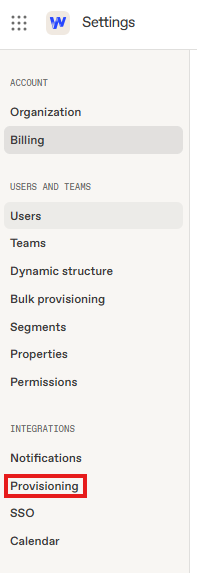
1. When logged into your account, click the gear icon on the top right corner to access your Account settings page and select Provisioning from the side menu
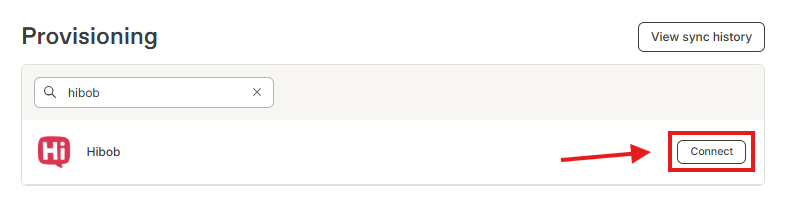
2. On the Provisioning settings page, search for HiBob and click Connect.
3. A pop up guide will open to take you through the authentication process with HiBob. Follow the navigation and select Submit to connect Workleap to your HRIS.
- The time it takes to establish an initial connection varies greatly depending on the HRIS and the size and complexity of your account.
- Feel free to leave the page, as that won't affect the connection.
4. Once the connection between Workleap and your HRIS is established, you'll be directed to the integration configuration page, provided you have the page open.
Choosing what Employee Types to Sync
After setting up the integration, you will be able to select what employee types from HiBob you wish to sync over to Workleap. The options are:
- Full Time
- Part Time
- Interns
- Contractors
- Freelancers
You will also be prompted if you wish to sync all employees in your HiBob account, or a specific group in HiBob. If you wish to sync only specifically selected users you will need to create a group in HiBob with these users, then select this group from the integration settings page. Once selected, only employees who are added to this group in HiBob will have their profiles generated and created in Workleap.
Configure Properties
You’ll need to create properties in Workleap in order to sync data from HiBob to that property. To add new custom properties in Workleap:
- Open Settings and select Properties from the side menu
- Create the properties you want to map from HiBob.
- For choice properties (i.e., drop-down lists), you only need to add a single choice; the integration adds the rest for you when syncing with your HRIS.
- On the HiBob integration settings page, select Create new mapping.
- Select a field in the HRIS field column to map to Workleap.
- If you do not see a field, it may not be configured correctly. Select + Map HRIS fields to add the field.
- Select a property from the Workleap property column to map the HRIS field to.
- If you do not see a property, it may not have been added yet. Select + Create a new property to add a property.
Mapping your Teams
While in the HiBob integration settings page in Workleap, activate the toggle to map your HRIS groups to your Workleap teams. When you map an HRIS group to a team, users from the selected group(s) will be automatically added to or removed from that team during the next daily sync.
To map a group to a team, select the drop-down in the HRIS group column and start typing the desired group's name. When it appears, select the group from the list.
No: the HiBob sync updates employee and team information only. Your historical survey results, scores, and team data remain intact.
Yes, Workleap can automatically reorganize teams based on properties and hierarchy received from HiBob, but not by default. This automation only applies if the customer has already set up and activated one of the following:
- Dynamic structure
- Rule-based teams
- Team mapping
When these features are enabled, Workleap can automatically keep team structures up to date without ongoing manual maintenance.
Ensure that the HiBob service user has the correct permissions. The following permissions and associated fields must be enabled for Workleap to sync data properly:
Required HiBob permissions
People → Basic Info (required)
- Name
People → Employment
People → Work
- Company
- Employee number
- Manager
- Start date
- Termination date
- Work email
- Work location
- Department
- Job title
- Employment type
- FLSA code
People → Work contact details
- Work email
Stop leaving leadership *to luck.*
HiBob sync issue with teams or reporting lines
Team assignments or reporting lines in Workleap don’t match HiBob data even after waiting for sync, especially when dynamic structures are enabled.
Preview the dynamic structure results to confirm the expected output, then verify group/team mapping in the integration settings. If results still differ, review any HRIS fallback logic (e.g., auto-assigning higher-level managers) that may be overriding the intended reporting lines.
Customers are unable to complete or keep the HiBob integration connected
The connection often fails because the admin credentials are missing or incorrect, the HiBob service account lacks required permissions, or the integration disconnects without warning (commonly after changes like migrations).
Verify the authenticating user is an admin in both HiBob and Workleap, then update the HiBob service user permissions to match the documented required permission list.
Customers get stuck
Customers get stuck during HiBob field mapping, e.g. the mapping page shows no selectable options, mappings can’t be saved, or expected fields (like role or subteam) don’t appear.
Go back to the HiBob integration management screen and explicitly choose which HRIS fields Workleap is allowed to access.
Then use Map HRIS fields to re-run mapping, and Create new property to expose and map additional (non-default) fields as needed.
Discover other integrations


.svg)