Streamline your HR admin by connecting Workleap with Google Workspace, your central cloud productivity hub. This integration automates user syncing and leverages Calendar for seamless 1-on-1 scheduling, ensuring your employee directory is always up-to-date without manual lifting. Focus on driving team performance and growth while we handle the logistics through your existing Google ecosystem.
Sync Google Directory so surveys, 360s, and reviews always match your current org structure.
Automate provisioning from Google Workspace to reduce HR/IT admin for engagement and performance programs.

Use Google SSO for secure, one-click access that increases survey and review participation.

Workleap capabilities
Google Workspace helps teams work together. Workleap Officevibe helps them feel supported and understood.
While Google Workspace streamlines communication and content sharing, it doesn’t reveal how employees feel or what managers should focus on. Workleap Officevibe brings pulse surveys, feedback cycles, recognition, and actionable insights into the flow of work, giving organizations the engagement intelligence Workspace doesn’t provide.
- Gmail delivers surveys and other products notifications (like Good Vibes and feedback), digest and insights.
- Google Calendar and Workleap Officevibe can be integrated, allowing one-way synchronization of 1-on-1 meetings from your Google Calendar to Officevibe.
Google Workspace powers collaboration. Workleap Performance powers performance management.
Google Workspace is optimized for collaboration, not structured performance management. Teams uses Docs, Sheets, Drive, and Gmail to work—but none of these tools provide a consistent, fair, or repeatable performance process. Workleap Performance adds the structure, review workflows, continuous feedback, and goal alignment layer that Google Workspace is fundamentally missing. Together, they bridge daily collaboration with long-term performance outcomes.
- Google Drive, Calendar and Gmail will soon be available sources in the AI Review
- Gmail delivers notifications
- Google Calendar powers the new Workleap meeting-notes feature
Requirements for integration
- You must be an Administrator in both Workleap and your Google Workspace
- Only one user provisioning integration can be active at a time
- Workleap must have access to these specific scopes during setup:
- View domain user schemas
- View domains related to your customers
- View group subscriptions on your domain
- View domain groups
- See domain user info
- For Calendar sync: Google Workspace admin account specifically required
- Email addresses of manually added users must match their Google Workspace email addresses before initial sync
Initial Google Workspace setup
To initially set up the Google Workspace integration:
1. When logged into your account, click the gear icon on the top right corner to access your Account settings page and select Provisioning from the side menu
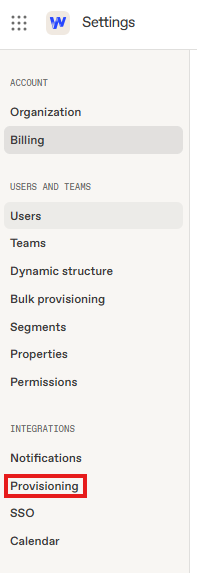
2. On the Provisioning settings page, search for Google Workspace and click Connect.
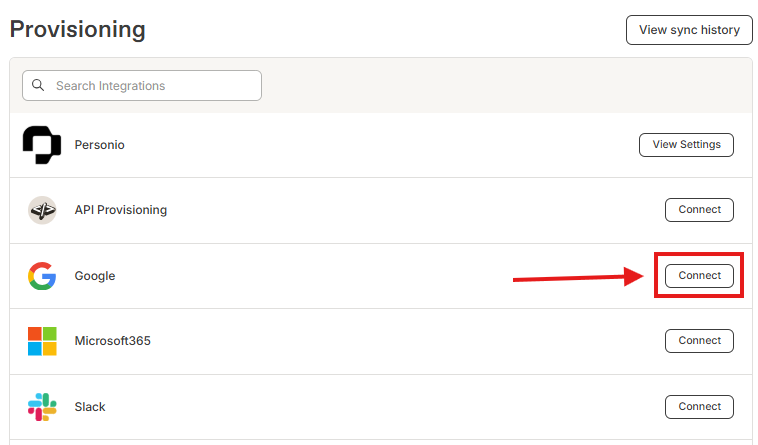
3. Select Connect to your Google organization.
4. Enter the requested authentication info to connect to your Google organization.
- Be sure to accept the requested permissions to Workleap when asked.
- The time it takes to establish a connection varies greatly depending on your organization's size.
Once the integration is enabled you can start syncing your employee data by clicking Start Sync Now.
Configure properties
The following default properties are pre-mapped to Workleap:
- User name
- Email address
- Profile picture
- Hire date
- Direct manager
To configure additional properties other than the fields listed above, you will first need to create those properties from the properties menu in settings. Once the properties have been created you can select to map the properties in Google to the property in Workleap, and it will pull that data the next time that Google syncs to your account.
SSO
To activate Google SSO for your Workleap account after activating your integration:
- Open Settings and select SSO from the side menu.
- Toggle on the SSO for Google.
Once this is enabled your users will need to authenticate with their Google credentials to access their account.
Syncing by group
If you prefer to sync a specific group of employees instead of all employees in your Google Workspace, you must first create this group in Google and add all the employee profiles that should sync over to your account. Once that group is enabled, navigate to your Google sync settings in Workleap and select Everyone in the following Google groups, then select the group you have created. Upon the next sync any profiles in Workleap that are not in this group will be deactivated.
Mapping your teams
If you have teams in Google you wish to sync over to your account make sure that the teams have been properly configured on the Google side, then when on the Google integration settings page choose the drop down menu for mapping teams and select the teams you wish to map to each one in your account.
Customers often compare Google to other identity or HR systems—such as Microsoft 365, Slack, BambooHR, Sage HR, ADP, or Personio—to understand how these integrations can coexist. While you can connect multiple systems to Workleap, only one provisioning integration can be active at a time.
Google can still be used alongside other platforms, but its role is different: it supports features such as calendar synchronization, whereas communications are handled through Microsoft Teams or Slack, not Google. This flexibility allows organizations to mix and match the tools they need, using Google for calendars, Slack or Teams for communications, and another system for provisioning without causing conflicts.
Stop leaving leadership *to luck.*
OAuth scopes and multi-domain configuration errors
Integration fails when OAuth scopes are not properly configured in Google Admin Console, particularly domain specification scopes needed for multi-domain organizations; sub-domain users fail to sync when domain scope is not specified.
Ensure these specific scopes are properly configured in Google Admin Console:
- View domain user schemas
- View domains related to your customers
- View group subscriptions on your domain
- View domain groups
- See domain user info
For organizations with multiple domains, the standard integration setup won't work automatically. You'll need to ask to speak with a human agent for help setting up Google Workspace with multiple domains.
- Verify all required scopes are accepted during connection setup
- Check that domain specification scopes include all your sub-domains
- Ensure you're using admin credentials with proper domain access permissions
Service account setup and delegated user configuration issues
The Reporting Manager property must be manually synced and correctly configured; integration fails when Delegated User Email in Service Account Authentication is not set correctly.
- View domain user schemas
- View domains related to your customers
- View group subscriptions on your domain
- View domain groups
- See domain user info
Make sure you're using admin credentials with proper domain access permissions when setting up the connection. The authentication process requires you to be an Administrator in both Workleap and your Google Workspace organization.
Discover other integrations


.svg)