
Turn the Slack messaging platform into a hub for culture and performance. Workleap integrates seamlessly to deliver automated pulse surveys and feedback tools directly within your team channels, drastically boosting participation rates. By meeting employees where they already communicate, you capture real-time insights and foster engagement without ever disrupting their flow of work.

Drive higher survey and 360 response rates by delivering pulses and requests directly in Slack.

Run continuous engagement and performance conversations through familiar Slack channels and workflows.

Cut tool switching with Slack SSO and notifications so employees complete reviews without leaving chat.

Workleap capabilities
Slack connects people. Workleap Officevibe understands them.
Slack streamlines conversations, but it can’t diagnose engagement issues, surface team sentiment, or guide managers on how to support their teams. Officevibe adds the missing layer of employee understanding: continuous listening, feedback, and recognition embedded directly into Slack’s daily workflow.
Slack powers collaboration. Workleap Performance powers performance management.
Slack is real-time and ephemeral, great for collaboration but terrible for long-term memory. Workleap Performance adds the structure, traceability, and performance context Slack cannot provide. Together, they bridge the gap between daily work and performance decisions.
- Slack is a connected source that pulls context from conversations & channels for the AI-assisted review
- Slack delivers notifications
Requirements for integration
- You must be an Administrator in both Workleap and Slack
- Only one user provisioning integration can be active at a time
- Email addresses must match between Workleap and Slack accounts for proper user sync
- Slack integration does not import the Direct Manager property. You must manually upload Direct Managers via bulk provisioning for full functionality in Workleap Officevibe and Performance.
- For SSO setup, both Officevibe Administrator and Slack Administrator permissions are required
Initial Slack setup
To initially set up the Slack integration:
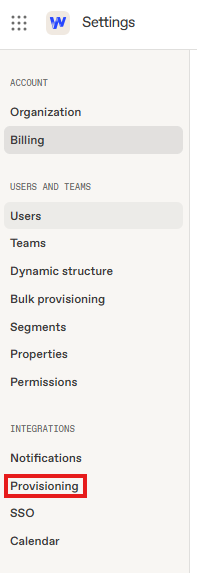
1. When logged into your account, click the gear icon in the top right corner to access your account settings page and select Provisioning from the side menu.
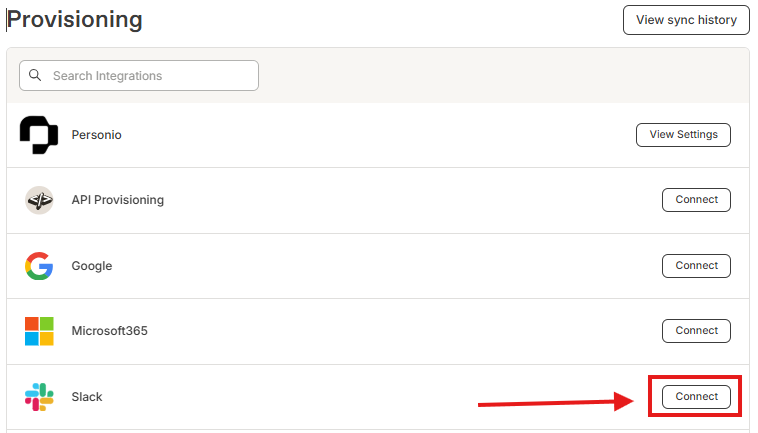
2. On the Provisioning settings page search for Slack and click Connect
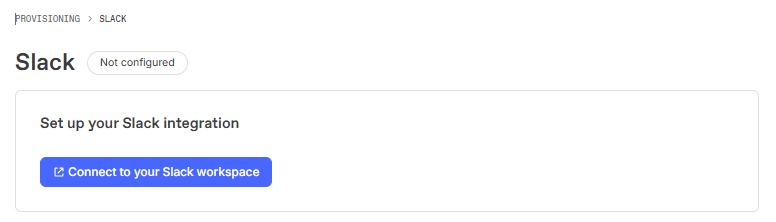
3. Select Connect to your Slack workspace
4. Enter the requested authentication info to connect to your Slack account
5. When the connection between Workleap and Slack is established, you'll be taken to the integration configuration page.
Choose members to import
Once the integration setup is completed, you will have the option to sync all employees in your Slack workspace, or to sync data from a specific group in Slack. When selected, all users from the specified Slack groups are synced daily with Workleap. To specify a Slack group, start typing the group's name in the text box and select it from the drop-down list that appears.
SSO
To activate Slack SSO for your Workleap account:
- Open Settings and select SSO from the side menu.
- Select Connect next to Slack
- Select Connect to your Slack workspace
Once this is enabled your users will need to authenticate using their Slack account to access their account.
Mapping teams from Slack
While in the Slack Integration Settings click the toggle to map groups to your Workleap teams. When you map a Slack group to a team, users from the selected group(s) will automatically be added to or removed from that team in the next daily sync.
To map a group to a team, select the drop-down in the Slack group column and start typing the desired group's name. When it appears, select the group from the list.
Provisioning, SSO, and Slack communications are independent features, and you do not need to enable all of them for Slack-related functionality to work. For example, Slack provisioning is not required for sending notifications through Slack, and you can use Slack communications even if your users are provisioned from another system such as Personio, BambooHR, or Google.
You can configure multiple SSO providers in Workleap, and they operate independently from provisioning and communications. However, only one provisioning system can be active at a time, regardless of which SSO providers you use.
Slack provisioning does not automatically invite all users unless it is explicitly configured to do so. You can limit which users are provisioned by scoping the integration to specific Slack groups or channels. However, if a targeted Slack channel is private, Workleap cannot access it by default. In these cases, a Slack admin must invite Officevibe to the private channel by typing @Officevibe inside it.
This scoping approach helps prevent inviting non-employees or users who should not have access.
When Slack integration issues occur—such as pages failing to load, channels not appearing, aborted syncs, or users missing expected data—common troubleshooting steps include verifying that you have admin permissions in both Workleap and Slack, checking the sync history, clearing the browser cache, or reconnecting the integration. Ensuring the correct workspace is connected and that required permissions were granted is also essential for resolving functionality issues.
Stop leaving leadership *to luck.*
Incomplete user profile data mapping and limited customization
Slack provisioning only syncs basic user data (names, emails, profile pictures, job titles) with no field customization options for extended HR properties, and only one active provisioning integration allowed at a time.
Consider replacing Slack with an HRIS integration that supports custom field mapping and extended HR properties. We support 30+ HRIS platforms including BambooHR, Hibob, Personio, and others that allow full property customization.
You can supplement Slack integration by using bulk provisioning to add custom properties:
Go to Settings > Bulk provisioning
Download the template with your custom properties
Update user data with extended HR information
Upload back to Workleap
Direct manager and reporting hierarchy missing
Slack does not natively store manager or reporting relationships and does not automatically import Direct Manager information, which is critical for Performance and Pingboard features.
- Go to Settings > Bulk provisioning
- Download the XLS template
- Add Direct Manager email addresses in the Direct Manager column for each employee
- Upload the completed file back to Workleap
Consider switching to an HRIS integration or setting up dynamic structure, which automatically sync Direct Manager relationships and keep your org chart updated.
Without Direct Manager assignments, users won't appear correctly in Pingboard's org chart and you'll miss key functionality in Performance reviews.
Discover other integrations


.svg)